Webflow Forms for Nonprofits
A practical guide to building and configuring Webflow forms for nonprofit websites — covering native form setup, notification routing, Zapier integrations for CRM, and GDPR consent considerations.

Webflow Forms for Nonprofits
Forms are how your website collects information from the people who want to engage with your organisation — contact enquiries, volunteer applications, event registrations, feedback submissions, and referral requests. Every form on the site is a data collection point that needs to work reliably and comply with GDPR.
Webflow includes a native form builder that handles most nonprofit use cases without third-party tools. This guide covers how to set up forms, where the data goes, how to route it to the right people, and what GDPR compliance requires.
Webflow Native Forms
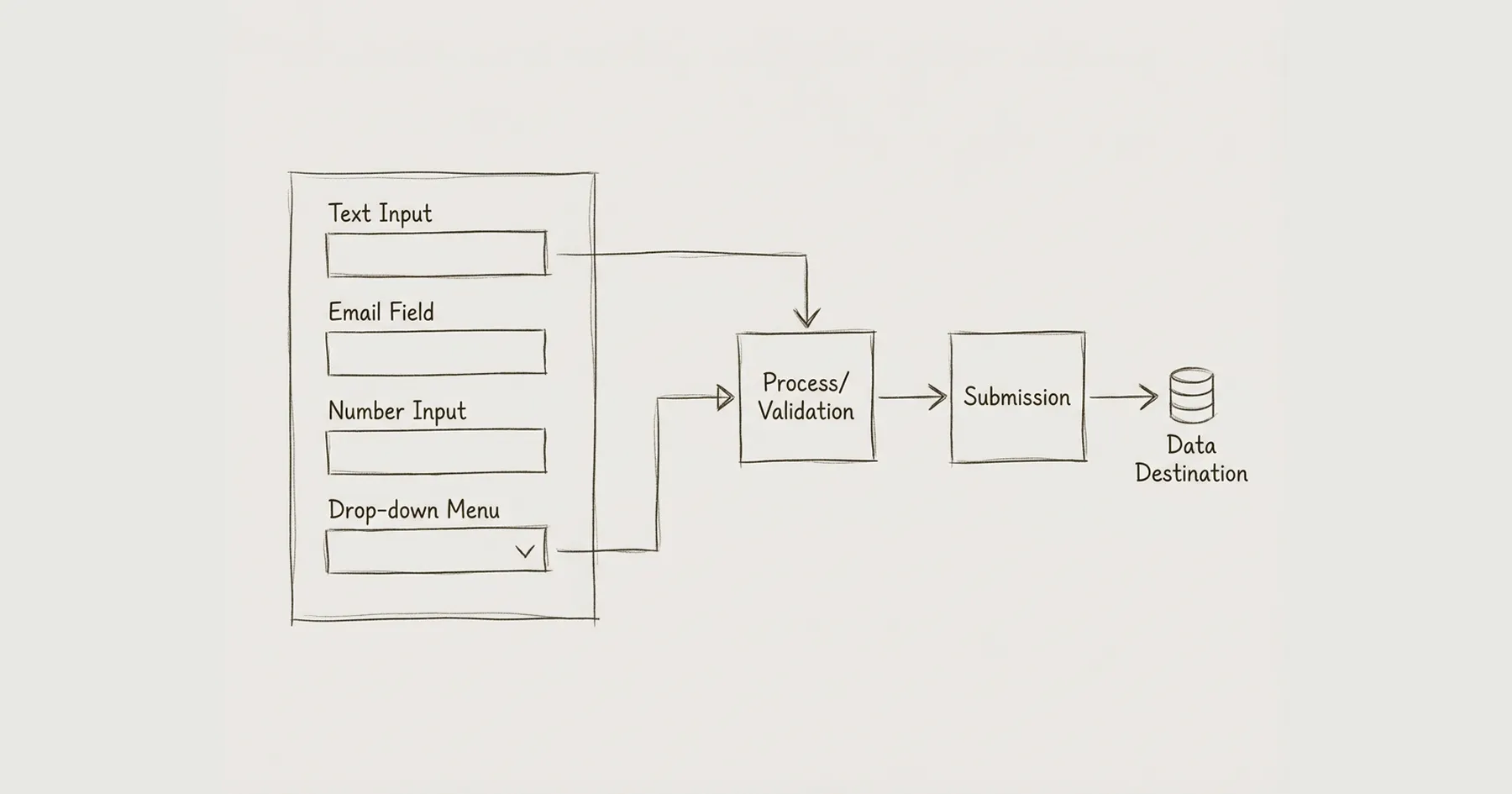
Webflow’s built-in form element handles standard form types: text fields, email fields, text areas, select dropdowns, radio buttons, checkboxes, and file uploads. Form submissions are stored in the Webflow dashboard and can trigger email notifications.
To add a form, drag the Form Block element onto your page in the Designer. Each form needs a unique name (e.g. ‘Contact Form’, ‘Volunteer Application’) — this is how submissions are labelled in the dashboard and notifications.
Configure the form’s success and error states. The success state should confirm submission clearly (‘Thank you. We will respond within 3 working days.’). The error state should explain what went wrong and how to fix it.
Field Configuration
Every form field needs three things: a visible label (the text above the field that tells users what to enter), a name attribute (the identifier used in submissions and integrations), and the correct input type (email for email addresses, tel for phone numbers, etc.).
Do not use placeholder text as a substitute for labels. Placeholders disappear when users start typing and are not reliably announced by screen readers. Every field must have a visible, persistent label for both accessibility and usability.
For forms with multiple sections (e.g. a volunteer application with personal details, availability, and interests), use heading elements within the form to create clear sections. This helps both visual users and screen reader users navigate the form.
Notification Routing
Webflow sends form submission notifications to the email address configured in the form settings. For nonprofits with different teams handling different enquiry types, you need routing — sending contact enquiries to the communications team, volunteer applications to the volunteer coordinator, and event registrations to the events team.
Webflow’s native forms send all submissions to a single email address per form. If you need routing to different recipients, you have two options: create separate forms for each enquiry type (simplest approach — each form sends to a different email), or use Zapier to route submissions based on form fields (more complex but allows a single form with a ‘type of enquiry’ dropdown that determines where the notification goes).
CRM Integration via Zapier
If your organisation uses a CRM (Salesforce, HubSpot, Bloomerang, or similar), you can connect Webflow form submissions to your CRM via Zapier. The typical setup is: Webflow form submission triggers a Zapier automation that creates a new contact or lead in your CRM with the form data mapped to CRM fields.
This requires a Zapier account and a CRM with Zapier integration. Setup takes approximately 30–60 minutes per form. Once configured, it runs automatically for every submission.
For the broader CRM integration picture, see CRM Integration for Nonprofit Webflow Sites.
GDPR Consent
Every form that collects personal data must include GDPR-compliant consent. At minimum:
Consent checkbox for marketing. If the form sign-up will result in marketing emails (newsletters, appeals), include an unchecked checkbox that the user must actively opt into. The label should clearly state what they are consenting to: ‘I agree to receive email updates from [Organisation Name]. You can unsubscribe at any time.’
Privacy policy link. Include a link to your privacy policy near the submit button. The text should state: ‘By submitting this form, you agree to our privacy policy.’
Data retention. Know how long form submissions are stored in the Webflow dashboard and document this in your privacy policy. Webflow retains form submissions until they are manually deleted.
For the full GDPR compliance framework, see GDPR Compliance Checklist for Nonprofit Websites.
Accessibility
All forms must be accessible. The key requirements are: every field has a visible label with a matching for attribute, error messages are descriptive and associated with the relevant field, the form can be completed entirely by keyboard, focus moves logically through the fields, and the submit button is clearly labelled.
Test every form by completing it using only the keyboard (Tab to navigate, Enter to submit). If you cannot complete the form without a mouse, it fails WCAG AA.
For the full accessibility requirements, see WCAG AA Accessibility on Webflow.
Eric Phung has 7 years of Webflow development experience, having built 100+ websites across industries including SaaS, e-commerce, professional services, and nonprofits. He specialises in nonprofit website migrations using the Lumos accessibility framework (v2.2.0+) with a focus on editorial independence and WCAG AA compliance. Current clients include WHO Foundation, Do Good Daniels Family Foundation, and Territorio de Zaguates. Based in Manchester, UK, Eric focuses exclusively on helping established nonprofits migrate from WordPress and Wix to maintainable Webflow infrastructure.
Not sure where your site currently stands?
A Blueprint Audit tells you exactly what needs to change — and why.
Before implementing anything new, it's worth knowing what your current site is and isn't doing for your stakeholders. The Blueprint Audit gives you that clarity in two to three weeks.
Related Resources
Webflow Forms for Nonprofits
A practical guide to building and configuring Webflow forms for nonprofit websites — covering native form setup, notification routing, Zapier integrations for CRM, and GDPR consent considerations.
Join our newsletter
Subscribe to my newsletter to receive latest news & updates