Webflow CMS Impact Reports for Nonprofits
Step-by-step guide to building a CMS-managed impact reports section in Webflow for nonprofits — covering collection structure, field types, template design, and how to make impact data findable for funders.

Webflow CMS Impact Reports for Nonprofits
Impact reports are one of the most important content types on a nonprofit website. Institutional funders, major donors, and regulators look for evidence of outcomes — not just activity reporting. Yet most nonprofit websites either bury impact data in PDF downloads or scatter it across programme pages with no consistent structure.
A CMS-managed impact reports section solves this. Each report becomes a structured item with consistent fields, searchable content, and a dedicated page template that funders can navigate. Here is how to build one in Webflow.
Why a Dedicated CMS Collection
Publishing impact reports as standalone pages (rather than PDF uploads or blog posts) makes them indexable by search engines, accessible to screen readers, and consistently formatted. It also means each report has a dedicated URL that can be shared with funders and linked from grant applications.
A CMS collection ensures every report follows the same structure, which builds institutional credibility. Funders visiting your impact section see a consistent, professional archive rather than a random assortment of PDFs in different formats.
Collection Field Structure
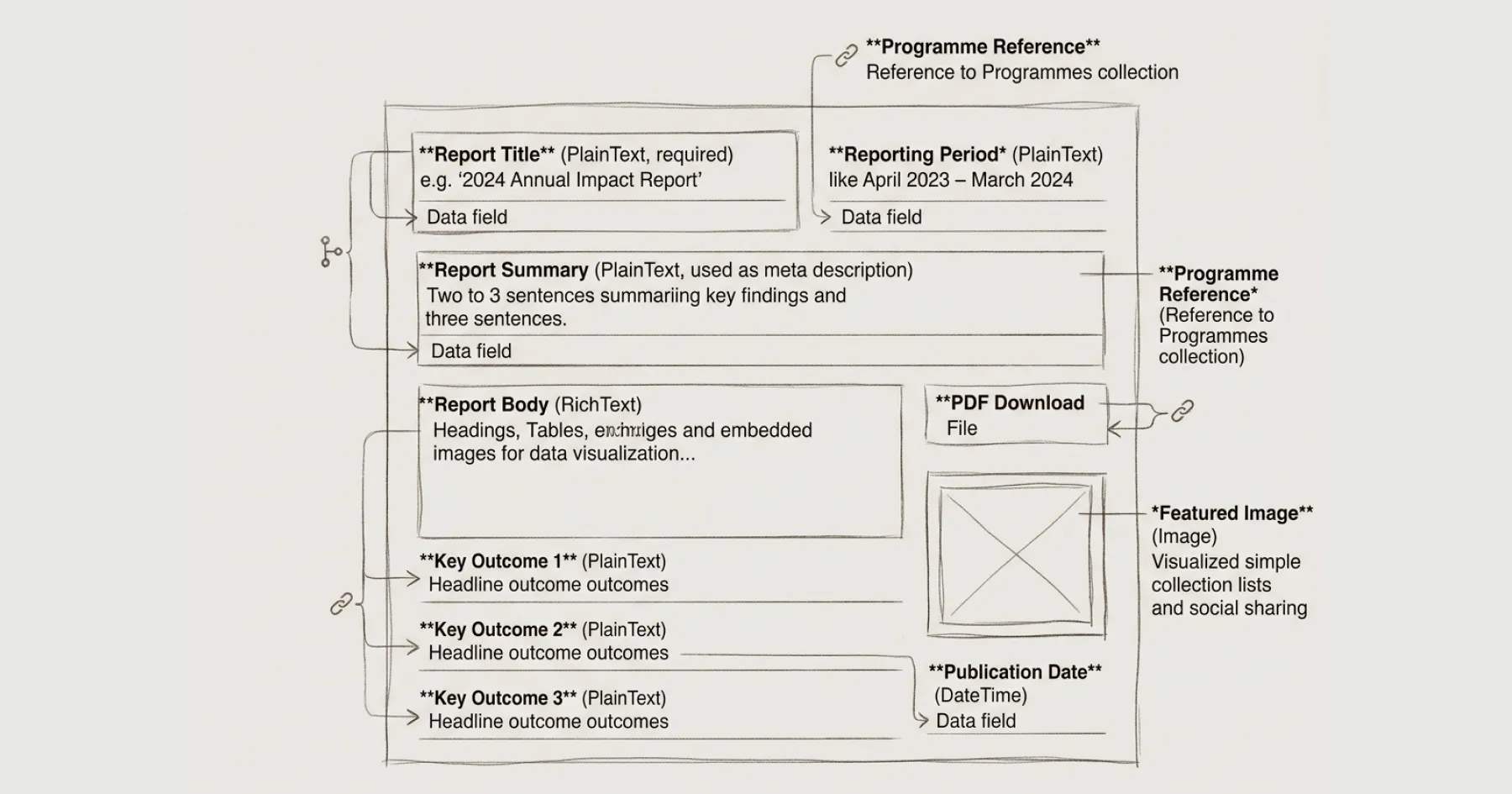
Create a new CMS collection called ‘Impact Reports’ with the following fields:
Report Title (PlainText, required) — e.g. ‘2024 Annual Impact Report’ or ‘Youth Employment Programme: 2023–24 Outcomes’.
Reporting Period (PlainText) — The period covered, e.g. ‘April 2023 – March 2024’.
Report Summary (PlainText, used as meta description) — Two to three sentences summarising the key findings. This appears in search results and social sharing.
Report Body (RichText) — The full report content. Use headings, tables, and embedded images for data visualisation. This is the main content field.
Key Outcome 1, 2, 3 (PlainText, three separate fields) — One-sentence headline outcomes, e.g. ‘73% of participants achieved sustained employment within 12 months.’ These can be displayed as highlight cards on the report page and in collection lists.
Programme Reference (Reference to Programmes collection, if applicable) — Links the impact report to the relevant programme page.
PDF Download (File) — Optional PDF version for funders who prefer a downloadable document. The web version is the primary format; the PDF is supplementary.
Featured Image (Image) — Thumbnail for collection lists and social sharing.
Publication Date (DateTime) — When the report was published. Use this for sorting (most recent first).
Template Page Design
The CMS template page for impact reports should prioritise readability and scannability. Funders are conducting due diligence, not leisure reading. They need to find specific data quickly.
Hero section: Report title, reporting period, and the three key outcomes displayed as headline statistics. This gives funders the summary before they scroll.
Body section: The rich text report body with clear heading structure (H2 for major sections, H3 for subsections). Tables for data presentation. Avoid walls of text — break findings into scannable sections.
Download section: Link to the PDF version if available, with a note that the web version is the accessible, current format.
Related content: Link to the relevant programme page and to the governance section for annual accounts and trustee information. Funders who find an impact report will want to verify governance credentials in the same session.
Collection List Page
Create an ‘Impact’ or ‘Our Impact’ page that displays all impact reports as a collection list, sorted by publication date (most recent first). Each card should show the report title, reporting period, and the three key outcomes. Link the card to the individual report page.
This page becomes the landing page you link to in grant applications and funder communications. One URL that demonstrates your entire outcomes evidence base.
Making It Findable
Link the Impact section from your main navigation — not buried in a submenu. Funders should be able to reach it within one click from the homepage. Add it to your footer navigation as well.
Implement Article schema on the template page so search engines and AI systems can parse the structured data. See Schema Markup for Nonprofit Websites.
For the broader credibility framework that impact evidence supports, see Why Your Nonprofit Website Fails Under Funder Scrutiny. For the governance documents section that should sit alongside impact reports, see Charity Commission Website Requirements.
Eric Phung has 7 years of Webflow development experience, having built 100+ websites across industries including SaaS, e-commerce, professional services, and nonprofits. He specialises in nonprofit website migrations using the Lumos accessibility framework (v2.2.0+) with a focus on editorial independence and WCAG AA compliance. Current clients include WHO Foundation, Do Good Daniels Family Foundation, and Territorio de Zaguates. Based in Manchester, UK, Eric focuses exclusively on helping established nonprofits migrate from WordPress and Wix to maintainable Webflow infrastructure.
Not sure where your site currently stands?
A Blueprint Audit tells you exactly what needs to change — and why.
Before implementing anything new, it's worth knowing what your current site is and isn't doing for your stakeholders. The Blueprint Audit gives you that clarity in two to three weeks.
Related Resources
Webflow CMS Impact Reports for Nonprofits
Step-by-step guide to building a CMS-managed impact reports section in Webflow for nonprofits — covering collection structure, field types, template design, and how to make impact data findable for funders.
Join our newsletter
Subscribe to my newsletter to receive latest news & updates