WCAG Audit for Nonprofit Websites
A practical guide to auditing your nonprofit website for WCAG AA accessibility compliance — covering free tools, manual testing techniques, how to interpret results, and how to prioritise remediation.

WCAG Audit for Nonprofit Websites
A WCAG AA accessibility audit assesses whether your website meets the Web Content Accessibility Guidelines at Level AA — the standard expected by UK law under the Equality Act, by institutional funders during due diligence, and by the European Accessibility Act for organisations serving EU audiences.
This guide covers how to conduct a practical audit using free tools, what the results mean, and how to prioritise what to fix first. It is written for Communications Directors who need to understand the state of their site’s accessibility without needing to become accessibility specialists.
Before You Start
You do not need technical expertise to run a basic accessibility audit. You do need a laptop with Chrome or Firefox, approximately two hours, and the willingness to test your own site as a user with a disability would experience it.
An automated scan catches roughly 30–40% of WCAG violations. The rest require manual testing — checking keyboard navigation, reading order, focus management, and whether content makes sense without visual context. Both are necessary.
Step 1: Run an Automated Scan
Install axe DevTools as a Chrome or Firefox browser extension. It is free and widely regarded as the most reliable automated accessibility testing tool.
Navigate to your homepage. Open the browser developer tools (right-click → Inspect, or press F12). Click the axe DevTools tab. Click Scan All of My Page.
axe will return a list of violations, each categorised by severity: critical, serious, moderate, and minor. For each violation, it tells you what the issue is, which WCAG criterion it fails, and where on the page the problem occurs.
Repeat this scan on at least three additional pages: a programme page, your donation or contact page, and a governance/about page. Different page templates often have different accessibility issues.
Record the total number of violations per page and the severity breakdown. This is your baseline.
Step 2: Run a Second Automated Tool for Coverage
No single tool catches everything. Run WAVE (the Web Accessibility Evaluation Tool) as a second check. WAVE is available as a browser extension or at wave.webaim.org.
WAVE presents results differently from axe — it overlays icons directly on the page showing where errors, alerts, and features are. This visual approach can surface issues that axe reports differently or misses.
Pay particular attention to WAVE’s Contrast tab, which highlights every text element that fails the 4.5:1 contrast ratio for normal text or 3:1 for large text. Colour contrast is consistently the most common accessibility failure on nonprofit websites.
Step 3: Test Keyboard Navigation
Close your mouse. Using only the keyboard, navigate your homepage from top to bottom using the Tab key to move forward and Shift+Tab to move backward.
Check for these specific issues:
Can you reach every interactive element? Every link, button, form field, and navigation item should be reachable by Tab. If you cannot Tab to something, keyboard users cannot access it.
Can you see where you are? As you Tab through the page, there should be a visible focus indicator — typically an outline or highlight — showing which element is currently selected. If the focus indicator is invisible or barely visible, users who rely on keyboard navigation cannot tell where they are on the page.
Does the Tab order make sense? Focus should move through the page in a logical reading order — typically left to right, top to bottom. If focus jumps around unpredictably, the page structure has issues.
Can you operate the navigation? Can you open dropdown menus with Enter or Space, navigate within them with arrow keys, and close them with Escape? If not, the navigation is inaccessible to keyboard users.
Can you complete the donation flow? Tab through your entire donation process. If you cannot complete a donation using only the keyboard, you are excluding donors with motor impairments.
Repeat this test on your donation/contact page and at least one programme page.
Step 4: Check Content-Level Accessibility
These checks assess whether the content itself is accessible, not just the code.
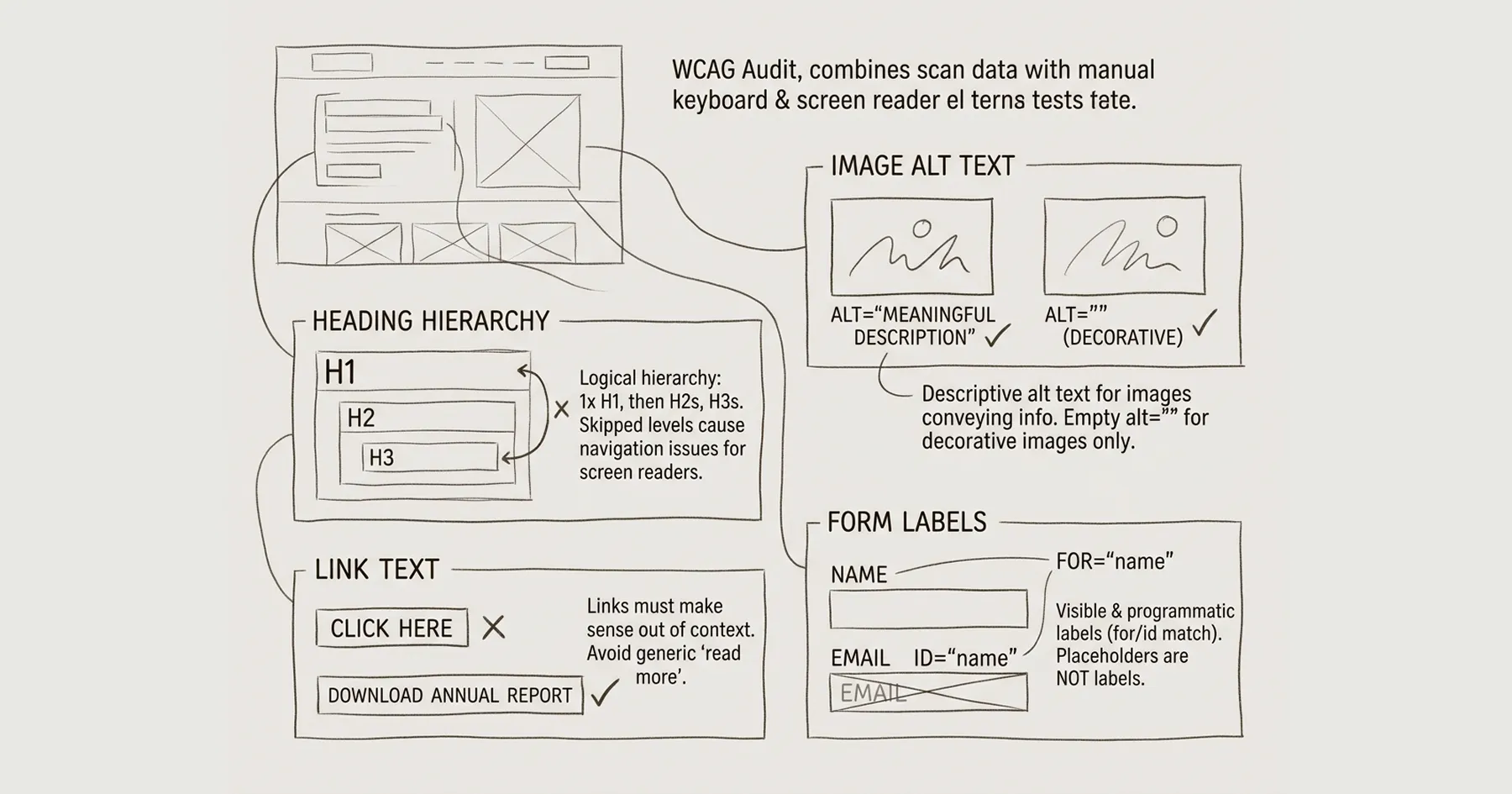
Heading hierarchy. Right-click on any page and select View Page Source (or use a browser extension like HeadingsMap). Check whether headings follow a logical hierarchy: one H1, followed by H2s for main sections, H3s for subsections. Skipped levels (H1 → H3, or multiple H1s) create navigation problems for screen reader users.
Image alt text. Check whether all meaningful images have descriptive alt text. Right-click an image and select Inspect to see the alt attribute. If alt is empty or missing on an image that conveys information, screen reader users receive no description. Decorative images should have empty alt attributes (alt="") so screen readers skip them.
Link text. Review your links. Do they make sense out of context? Links that say ‘click here’ or ‘read more’ are meaningless to screen reader users who navigate by links. Each link should describe its destination: ‘Download our 2024 annual report’ rather than ‘click here’.
Form labels. Check whether every form field has a visible label and a programmatic label (using the for attribute matching the field’s id). Placeholder text alone is not a label — it disappears when the user starts typing and is not reliably announced by screen readers.
Step 5: Interpret and Prioritise Results
You will have a list of issues from the automated scans and manual testing. Not all issues are equal. Prioritise in this order:
Critical and serious automated violations. These are the issues that completely block access for some users. Missing form labels, broken keyboard navigation, and absent alt text on meaningful images fall here. Fix these first.
Keyboard navigation failures. If users cannot navigate or complete key tasks by keyboard, the site is fundamentally inaccessible regardless of what the automated scan says. This is often a structural issue requiring changes to the site’s framework or navigation component.
Colour contrast failures. These affect the largest number of users (including people with low vision, colour blindness, and anyone using a screen in bright conditions). They are also among the easiest to fix — typically requiring CSS colour value changes.
Content-level issues. Missing alt text, unclear link text, and heading hierarchy problems. These are maintenance tasks that can be addressed incrementally as content is reviewed.
Moderate and minor automated violations. Address these after the critical issues are resolved. They represent genuine accessibility improvements but are lower risk.
What a Good Baseline Looks Like
For a nonprofit website built on an accessible framework like Webflow with Lumos, you should see fewer than 10 violations per page on the automated scan, with most being content-level issues (alt text, contrast on specific elements) rather than structural failures.
For a website built without accessibility consideration, automated scans frequently return 30–80+ violations per page, including structural issues that cannot be fixed by content changes alone. In these cases, the audit findings become evidence for a rebuild recommendation rather than a remediation plan.
Ongoing Monitoring
An accessibility audit is not a one-off event. New content, page updates, and platform changes can introduce accessibility regressions. Build a quarterly automated scan into your website governance cadence, and repeat the manual keyboard navigation test annually or after significant site changes.
For the accessibility statement your site needs following this audit, see Accessibility Statement Template for Nonprofits. For how WCAG compliance works specifically on Webflow, see WCAG AA Accessibility on Webflow. For the regulatory context driving accessibility requirements, see What the European Accessibility Act Means for NGO Websites.
The Blueprint Audit includes a full WCAG AA accessibility assessment — automated and manual — as part of the technical audit. For organisations that need a structured starting point with professional interpretation of results, it provides the baseline and a prioritised remediation plan.
Eric Phung has 7 years of Webflow development experience, having built 100+ websites across industries including SaaS, e-commerce, professional services, and nonprofits. He specialises in nonprofit website migrations using the Lumos accessibility framework (v2.2.0+) with a focus on editorial independence and WCAG AA compliance. Current clients include WHO Foundation, Do Good Daniels Family Foundation, and Territorio de Zaguates. Based in Manchester, UK, Eric focuses exclusively on helping established nonprofits migrate from WordPress and Wix to maintainable Webflow infrastructure.
Not sure where your site currently stands?
A Blueprint Audit tells you exactly what needs to change — and why.
Before implementing anything new, it's worth knowing what your current site is and isn't doing for your stakeholders. The Blueprint Audit gives you that clarity in two to three weeks.
Related Resources
WCAG Audit for Nonprofit Websites
A practical guide to auditing your nonprofit website for WCAG AA accessibility compliance — covering free tools, manual testing techniques, how to interpret results, and how to prioritise remediation.
Join our newsletter
Subscribe to my newsletter to receive latest news & updates