






- Getting Started
How to Connect Your Domain to Webflow via DNS: Step-by-Step Guide


Key takeaways
- A custom domain needs a paid Webflow site plan. The free Starter plan publishes only to a webflow.io address, and trying to add a domain before the plan is upgraded is a common reason this stalls.
- The organisation pays Webflow for the site plan in its own account. Hosting billed through a supplier is a dependency the charity cannot unwind on its own.
- Webflow asks for three records, not two. An A record on the root domain, a CNAME on www, and a TXT record named _webflow that proves you own the domain.
- Webflow moved its hosting onto Cloudflare and changed the values: the www CNAME target is now cdn.webflow.com. The old proxy-ssl.webflow.com target is legacy, and since 13 January 2026 you cannot publish to a custom domain that still points at it.
- Take every value from your own site's publishing settings rather than from any guide. Webflow says values can differ between sites and some sites need more than one A record.
- Leave the MX, SPF, DKIM and DMARC records alone. Changing the web records does not touch email, but a careless overwrite of the whole DNS zone takes the charity's inbox down with it.
- GoDaddy's Delegate Access lets a supplier manage DNS without anyone sharing a password, and the registrar account stays in the charity's name.
Summary
A plain-English walkthrough of connecting a custom domain to Webflow via DNS: the A, CNAME and TXT records Webflow asks for, GoDaddy delegate access, propagation, protecting your email, and the errors that keep a launch stuck.
Before You Start
This guide covers how to connect a domain you’ve already registered to a Webflow site. It’s written for the person managing the technical side of a nonprofit website launch, typically a Digital Manager, or a Communications Director who’s comfortable following step-by-step instructions.
What you need before starting:
- A registered domain (see How to Buy a Domain for Your Nonprofit if you haven’t done this yet)
- Access to your domain registrar account, either directly or via delegate access
- A Webflow site on a paid site plan
- Access to Webflow as an Admin on the site
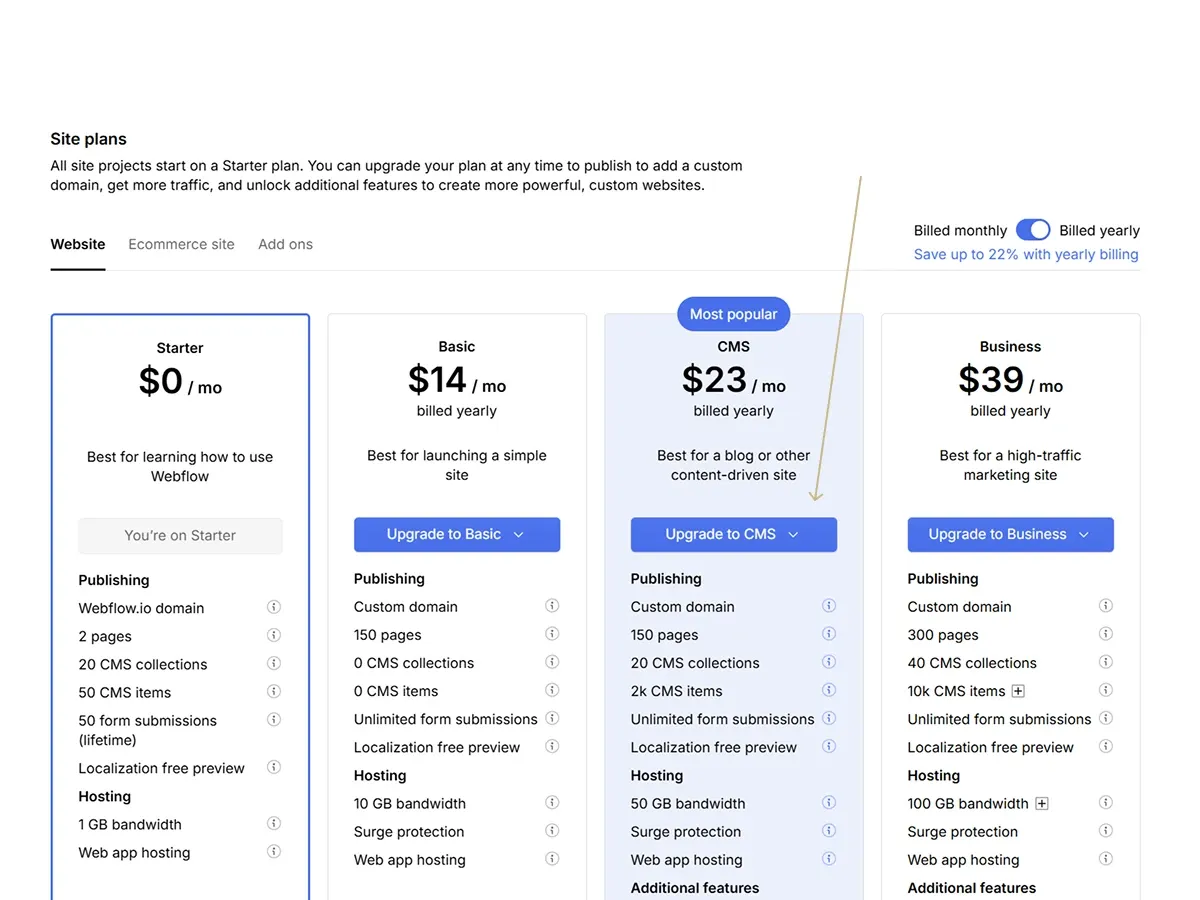
Critical prerequisite: the site plan must be upgraded first. A Webflow site on the free Starter plan publishes only to a webflow.io address. Webflow’s pricing page (checked September 2026) shows publishing to a custom domain as unavailable on Starter and included from the Basic plan upward, listed at $15 per month billed yearly, with tax added at checkout. Before touching DNS, confirm the site is on a paid plan. Attempting to add a domain before upgrading is a common reason this process stalls.
The upgrade is done by the charity directly in its own Webflow account. The site plan is paid by the organisation to Webflow rather than through the developer, and that matters beyond the invoice: hosting billed through a supplier is a dependency the organisation cannot unwind on its own if the relationship ends.
What this guide covers: adding a custom domain in Webflow, updating DNS records at your registrar, understanding propagation, and verifying everything is working. GoDaddy is used as the primary registrar example since it’s what most nonprofit clients I work with use, but the DNS principles apply to any registrar.
What it doesn’t cover: registering a domain (see How to Buy a Domain for Your Nonprofit), or SSL in depth (see SSL Certificates and HTTPS: What They Are and How Webflow Handles Them).
What DNS Actually Is (Without the Jargon)
DNS stands for Domain Name System. It’s the mechanism that translates a human-readable domain name, yourcharity.org.uk, into the numerical IP address that computers use to locate a server.
When someone types your domain into a browser, their computer asks a DNS server where the domain is hosted. The DNS server looks up the records associated with your domain and returns the address of the server where the site lives. The browser then connects to that server and loads the site.
When you connect a custom domain to Webflow, you’re updating those records to point to Webflow’s servers. You’re telling the global DNS system: when someone looks up yourcharity.org.uk, send them to Webflow.
There are three types of record involved.
A record. Points a domain to a specific IP address. You’ll use this for the root domain, the version without www.
CNAME record. Points a domain to another domain name rather than an IP address. You’ll use this for the www version of your domain, pointing it at Webflow.
TXT record. Holds a string of text rather than an address. Webflow uses one to confirm that you control the domain before it will let you publish to it.
You’ll need all three. Most visitors type or click www.yourcharity.org.uk, but many will also try yourcharity.org.uk without the www. Both need to work and land in the same place.
Step 1: Upgrade Your Webflow Site Plan
Log into Webflow and open the site’s settings. Look for the Plans or Billing section associated with your specific site rather than the workspace, since the plan that unlocks a custom domain is bought per site.
Choose a paid plan. Webflow’s current site plans are Starter (free), Basic and Premium, with Team and Enterprise sitting above them as platform plans. Basic is enough to connect a domain; Premium is what you need if the site uses the Webflow CMS, which most charity sites with news, events or resources will. Webflow renames these tiers periodically, so read what the plan includes rather than shopping by name.
The upgrade takes effect immediately. Once it’s active, you can add the custom domain.
Step 2: Add Your Custom Domain in Webflow
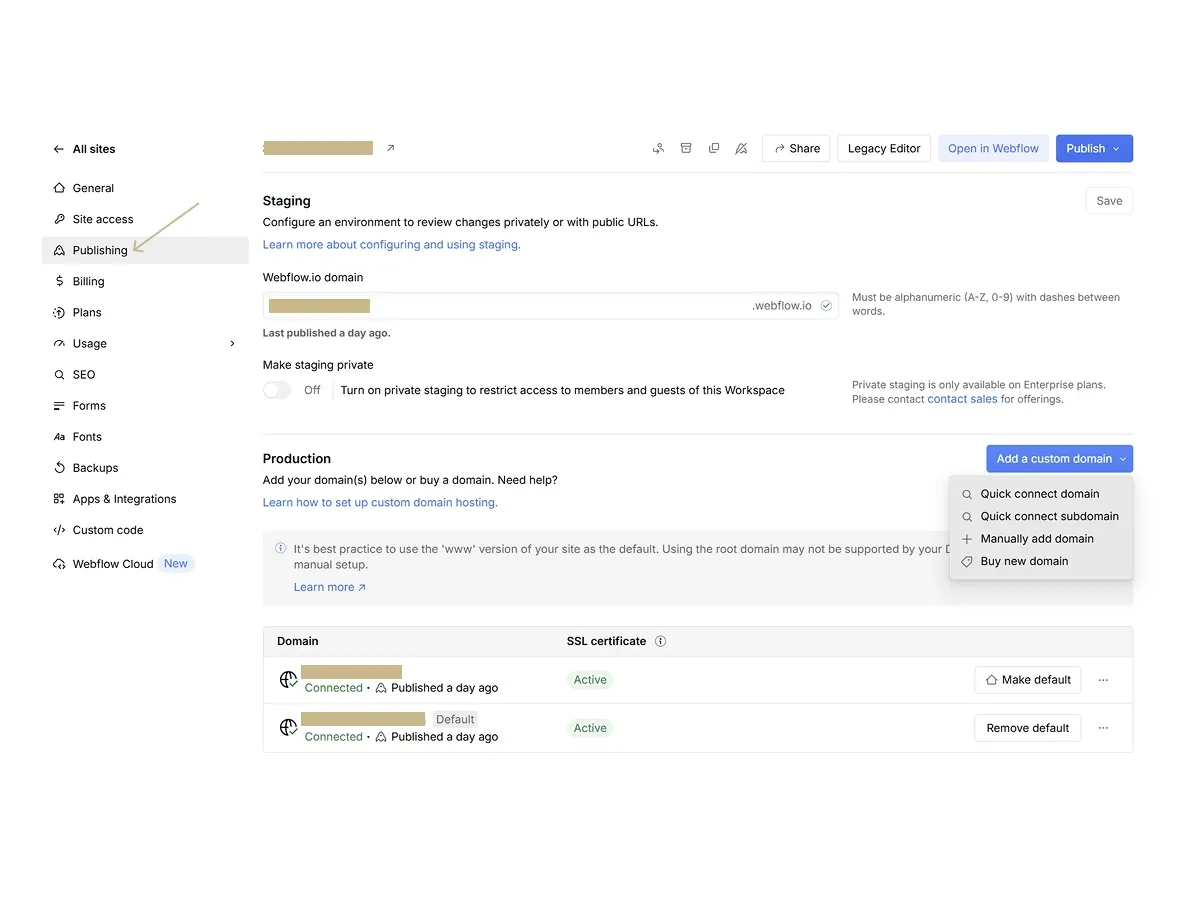
In Webflow, go to Site settings, then Publishing, then Production, and choose Add a custom domain. You’ll be offered a quick connect flow and a manual option. Take the manual option for now; the quick connect route is covered in the next step, and it carries a risk worth understanding first.
Add your domain in two versions:
- The www version: www.yourcharity.org.uk
- The root version: yourcharity.org.uk
Webflow then displays the DNS records you need to configure. Keep this screen open; you’ll be copying these values into your registrar in the next step.
Webflow will show you:
- An A record value for the root domain. Webflow’s registrar documentation gives this as
198.202.211.1as of September 2026 (Webflow, GoDaddy integration guide), but Webflow states plainly that values can differ between sites and that some sites require more than one A record, so use what your dashboard shows and add every A record listed - A CNAME record value for the www version, which is now
cdn.webflow.com - A TXT record for verification, with the host
_webflowand a string unique to your site beginningone-time-verification=
Webflow's help centre recommends the www version as the default domain, because setting the root domain as the default can cause redirect loops and loading problems. Unless you have a reason to do otherwise, follow it.
Step 3: Get Access to the DNS Settings
You now need to update the records wherever the domain is registered. In GoDaddy there are three routes.
Route A: GoDaddy Delegate Access (recommended when someone else is doing the work)
If a developer or consultant is managing DNS on your behalf, the safest approach is Delegate Access. It grants another person access without anyone sharing login credentials, and your GoDaddy account stays under your control throughout.
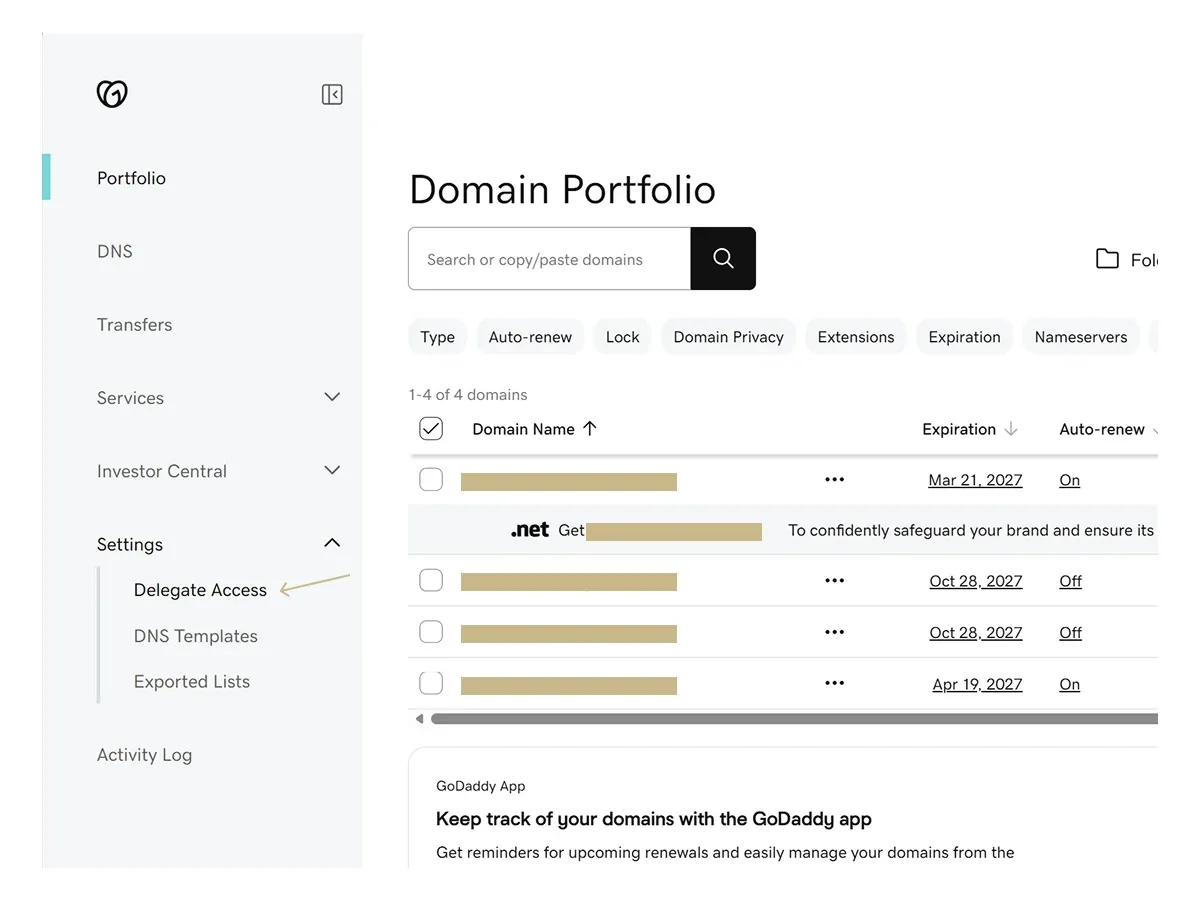
To grant Delegate Access in GoDaddy (GoDaddy's own instructions):
- Log into your GoDaddy account and open the Domain Portfolio
- In the left-hand menu, open Settings and select Delegate Access
- Invite the person by email address
- Choose a level of access that covers domain management, reading the descriptions on screen rather than matching them to a guide, as GoDaddy renames these levels from time to time
- Send the invitation
The invited person receives an email with a link to accept. Once accepted, they can manage DNS on your behalf without ever seeing your password, and access can be withdrawn in a click when the work is done. That is a governance point as much as a security one: the registrar account is the single credential that decides whether the organisation still owns its own address, and it should never sit only in a supplier’s inbox.
Route B: Direct login
If you’re managing DNS yourself, log into GoDaddy, open My Products, select your domain and choose Manage DNS. You’ll see a table of existing records.
Route C: Webflow Quick Connect, with one caveat
Webflow offers an OAuth-based Quick Connect that configures GoDaddy DNS automatically, with no manual record entry. It requires the domain to be using GoDaddy’s default nameservers (ns01.domaincontrol.com and ns02.domaincontrol.com), and Webflow advises waiting for GoDaddy’s confirmation email that the domain is ready for use before starting, or the connection fails.
The caveat: an automated flow writes to the DNS zone on your behalf. Webflow’s own documentation warns that a quick connect flow can overwrite existing MX, SPF and other records and tells you to review the changes screen carefully before confirming (Webflow, Network Solutions integration guide). If the charity’s staff email runs on this domain, that is a real risk for a little saved work, and I would enter the records by hand.
Step 4: Update the DNS Records
You’re now in your registrar’s DNS management screen with Webflow’s values on screen. Before you change anything, export or screenshot the existing record list. If something breaks, that list is how you put it back.
The A record (root domain)
- Look for an existing A record where the Host or Name field shows
@, which represents the root domain - If one exists, edit it. If not, add a new A record
- Set Host to
@ - Set Points to or Value to the A record value from your Webflow settings
- Set TTL to the lowest available value, as Webflow’s DNS migration guide suggests
- Save
If Webflow lists more than one A record for your site, add each one exactly as shown.
The CNAME record (www version)
- Look for an existing CNAME record where the Host or Name field shows
www - If one exists, edit it. If not, add a new CNAME record
- Set Host to
www - Set Points to or Value to the CNAME value from your Webflow settings, currently
cdn.webflow.com - Set TTL to the lowest available value
- Save
The TXT record (verification)
- Add a new TXT record
- Set Host or Name to
_webflow - Paste the verification string from your Webflow settings, which begins
one-time-verification= - Save
Copy and paste this one. It is a long unique string and a single clipped character means the domain never verifies.
Leave the email records alone
Do not touch MX, SPF, DKIM or DMARC records. They deliver and authenticate the organisation’s email and have nothing to do with where the website is hosted. Webflow’s registrar documentation says the same: change only the A and CNAME entries for web traffic. The launch-day disaster to fear is not a website that failed to appear; it is a mailbox that stopped receiving, discovered hours later.
Existing web records
If the domain was previously pointing at another host, a WordPress site, Wix, Squarespace or an older Webflow build, there will be existing A and CNAME records for the site. Update those rather than adding alongside them. Two A records for the root domain pointing to different places causes conflicts. Delete any other A or CNAME records for the root domain and www that aren’t the ones you’ve just set.
Step 5: Wait for Propagation
Once the records are saved, propagation begins: the updated records spreading across DNS servers worldwide.
Webflow’s guidance is that changes typically take effect within a few hours but can take up to 48 hours to propagate in all locations. There is no way to speed it up. It depends on the TTL of the previous records and on how often DNS servers around the world refresh. TXT records are often the slowest; Webflow notes they can take longer than A and CNAME records (Webflow, Network Solutions integration guide), which is why a domain sometimes resolves correctly while Webflow still reports it unverified.
During propagation some visitors may see the old site and some the new one. This is normal and temporary. Plan the switch for a low-traffic period, early morning on a weekday or a weekend, to minimise the number of people who see the inconsistency.
How to check progress: use a propagation checker. Webflow points to dnschecker.org and whatsmydns.net. Enter your domain, select the A record type, and see whether servers in different global locations have picked up the new record. When the majority show the correct address, propagation is substantially complete for most visitors.
Step 6: Verify in Webflow
Once DNS has propagated, return to Site settings, Publishing, Production, and use Check Status or Verify domain next to the domain. Webflow checks the records itself and reports whether the domain is connected correctly.
Set the default domain while you are here, using the Make default control next to your preferred version. Webflow recommends the www version. Whichever you choose, the other one should redirect to it rather than serving the site twice at two addresses, which splits your search signal and confuses anyone linking to you.
If the domain shows as unverified after 48 hours, there is a configuration error. See the troubleshooting section below.
Step 7: SSL Provisions Automatically
Once the domain is verified, Webflow provisions an SSL certificate automatically. Webflow’s documentation names Let’s Encrypt and Google Trust Services as the issuing authorities. This is what enables HTTPS and the padlock in browsers.
Provisioning follows once DNS has propagated, and you don’t need to do anything to trigger it. Until it completes, visitors may see a security warning; that resolves on its own. Do not try to install a separate certificate: Webflow’s SSL hosting page says only Enterprise customers can upload one.
One exception worth knowing. If your domain has CAA records, which are DNS records naming the certificate authorities allowed to issue for your domain, Webflow requires entries for both letsencrypt.org and pki.goog. Without them, Webflow says, certificates may fail to issue or renew and visitors may see a security warning. Most charity domains have no CAA records at all, in which case there is nothing to do. If yours does, Let’s Encrypt’s CAA documentation explains the mechanism.
For a full explanation of what SSL is and why it matters, see SSL Certificates and HTTPS: What They Are and How Webflow Handles Them.
If Your Domain Sits Behind Cloudflare
Some charities run their DNS through Cloudflare rather than at the registrar, usually because a previous supplier set it up that way. This works, but it is not the same procedure: the records go in Cloudflare rather than at GoDaddy, and the proxy setting on each record changes what Webflow can see. Webflow documents the arrangement in its Cloudflare integration guide. Find out which system actually answers for your domain before you start editing records at the registrar, because changes made in the wrong place have no effect at all and look exactly like a propagation delay.
Common Problems and How to Fix Them
The domain shows as unverified after 48 hours
Check the records again. The usual causes:
- The A record Host field is set to the full domain name instead of
@ - The CNAME still points at the legacy
proxy-ssl.webflow.cominstead ofcdn.webflow.com - The
_webflowTXT record is missing, or was typed rather than pasted - A conflicting A record from the previous host is still present alongside the new one
- The site plan wasn’t upgraded before the domain was added
The site loads on www.yourcharity.org.uk but not on yourcharity.org.uk (or vice versa)
One of the two records is misconfigured or hasn’t propagated. Check both independently with a propagation checker. Whichever version isn’t resolving has a problem with its specific record.
Publishing is blocked, or the site is live but changes won’t go out
This is the signature of a site still sitting on Webflow’s legacy DNS. Webflow moved its hosting onto Cloudflare, and its registrar documentation states that since 13 January 2026 you cannot publish to a custom domain pointing at the old records. Check Workspace settings under Domain Updates for your migration status, then update the www CNAME from proxy-ssl.webflow.com to cdn.webflow.com and confirm the A record matches what your site settings show today (Webflow, Network Solutions integration guide).
A security warning appears after the domain connects
SSL is still provisioning. Wait a while and check again. If it persists after several hours and Webflow shows the domain as connected, check for CAA records, then contact Webflow support. Occasional provisioning failures do happen and need Webflow to intervene.
The old site still appears after 48 hours
Clear your browser cache and check in a private window. Browser caching can keep the old site alive locally long after DNS has moved. If a private window also shows the old site, propagation may not be complete for your location; check a propagation tool for your region.
A Note for Communications Directors
If you’re not the person configuring DNS but you need to understand what’s happening, here is the short version.
Before launch, someone updates settings at the company where your domain is registered, GoDaddy, Namecheap or similar, to tell the internet that your domain now points at Webflow’s servers. It is quick to configure and can take up to 48 hours to take effect globally. Done properly it does not touch your email. Done carelessly it can.
Two things are worth your attention, and neither is technical.
The first is access. Make sure someone at the organisation can get into the registrar account when it’s needed, and use delegate access rather than passing a password around. If you’re unsure who owns the domain or how to get into the account, resolve that well before launch day rather than on the morning you intend to go live. A domain that only a former supplier can reach is not really the charity’s domain.
The second is that this is not a one-off. Platforms change their DNS requirements: Webflow changed its own, and since January 2026 sites that did not follow cannot publish. Someone needs to be accountable for noticing that, which is the difference between a site that is hosted and a site that is looked after.
Next Steps
Once the domain is connected and SSL is confirmed, your site is live. The remaining pre-launch steps, verifying analytics, testing forms, confirming redirects, are covered in the complete pre-launch checklist.
- How to Prepare Your Nonprofit Website to Go Live
- SSL Certificates and HTTPS: What They Are and How Webflow Handles Them
- How to Buy a Domain for Your Nonprofit
- Website Handover Planning: What Operations Directors Need Before a Rebuild
- Vendor Risk in Nonprofit Web Infrastructure: What to Audit Annually
Two clicks. Three things.
Send the address of your website. Within two working days you get a short email naming the three things a funder would hold against it, including what AI assistants like ChatGPT and Google’s AI Overviews currently say about you. No report, no call, no follow-up unless you ask.
Received. Your three things arrive within two working days.
That did not send. Email hello@socialectric.com with your website address and I will reply from there.
Frequently asked questions
- What do we need in place before connecting our domain to Webflow?
Four things: a registered domain, access to the registrar account either directly or through delegate access, a Webflow site on a paid site plan, and Admin access to that site. The plan is the critical prerequisite. Webflow's pricing page (checked September 2026) lists publishing to a custom domain as unavailable on the free Starter plan and available from the Basic plan upward, so a site on Starter cannot have a domain connected at all. The upgrade is done by the charity in its own Webflow account, because the site plan is paid by the organisation to Webflow rather than through a supplier. If you are not sure who currently holds the registrar login, resolve that first: it is one of the credentials a proper website handover should already have transferred.
- Which DNS records does Webflow need?
Three, and the third is the one guides tend to miss. An A record with the host field set to @ (the root domain, the version without www) pointing at Webflow's IP address, which Webflow's own registrar documentation gives as 198.202.211.1 as of September 2026. A CNAME record with the host field set to www pointing at cdn.webflow.com. And a TXT record with the host field set to _webflow, holding the verification string Webflow shows in your site settings, which begins one-time-verification=. Take all three values from what Webflow displays in your own site's publishing settings rather than from any guide, because Webflow states that values can differ between sites and that some sites need more than one A record. Webflow's help centre suggests setting the TTL to the lowest value available so changes propagate faster.
- Our site has been on Webflow for years. Do we need to change anything?
Probably yes. Webflow migrated its hosting onto Cloudflare and retired the old DNS values, so a site connected before that migration may still point at the legacy CNAME target proxy-ssl.webflow.com. Webflow's registrar documentation states that since 13 January 2026 you cannot publish to a custom domain sitting on the legacy records: the site stays live but changes will not go out. Check your migration status in Workspace settings under Domain Updates, then update the www CNAME to cdn.webflow.com and confirm the A record matches what your site settings now show. This is exactly the sort of quiet platform change an annual vendor risk review is meant to catch before it becomes a launch-day emergency.
- Can we give a developer DNS access without sharing our password?
In GoDaddy that is Delegate Access, and it is the safer route. From the Domain Portfolio, open Settings and select Delegate Access, then invite the person by email address and give them a level of access that covers domain management. They receive an email with a link to accept, and can then manage DNS on your behalf without ever seeing your password. GoDaddy changes the names of its permission levels from time to time, so read the descriptions on screen rather than matching them to a guide. The account stays in the charity's name throughout, which is the point: access can be withdrawn in a click, and nothing about the arrangement depends on the supplier still being around.
- Will changing these records break our email?
Not if you change only the records described here. Email is delivered by the MX records, with SPF, DKIM and DMARC records governing whether your mail is trusted, and none of those are touched by pointing a website at Webflow. The risk is in the method rather than the records: an automated connect flow or a wholesale replacement of the DNS zone can overwrite entries it was not asked about. Webflow's own registrar documentation warns against modifying existing MX, SPF, DKIM or DMARC records and advises changing only the A and CNAME entries for web traffic. If the charity runs email on this domain, export or screenshot the full record list before you touch anything, and prefer manual record entry over an automated flow.
- Webflow still shows our domain as unverified. What is wrong?
Go back to the records at your registrar and check five things, which are the usual causes. The A record's host field may be set to the full domain name instead of @. The CNAME may still point at the legacy proxy-ssl.webflow.com rather than cdn.webflow.com. The _webflow TXT record may be missing altogether, or pasted with the leading or trailing characters clipped. A conflicting A or CNAME record from the previous host may still be sitting alongside the new one, in which case delete any record for the root domain or www other than the two you have just set. Or the site plan was never upgraded. Give it time as well: Webflow notes that TXT records can take longer to propagate than A and CNAME records, so wait out the full 48-hour window before treating it as a fault.